How do I turn a screen recording into a video guide?
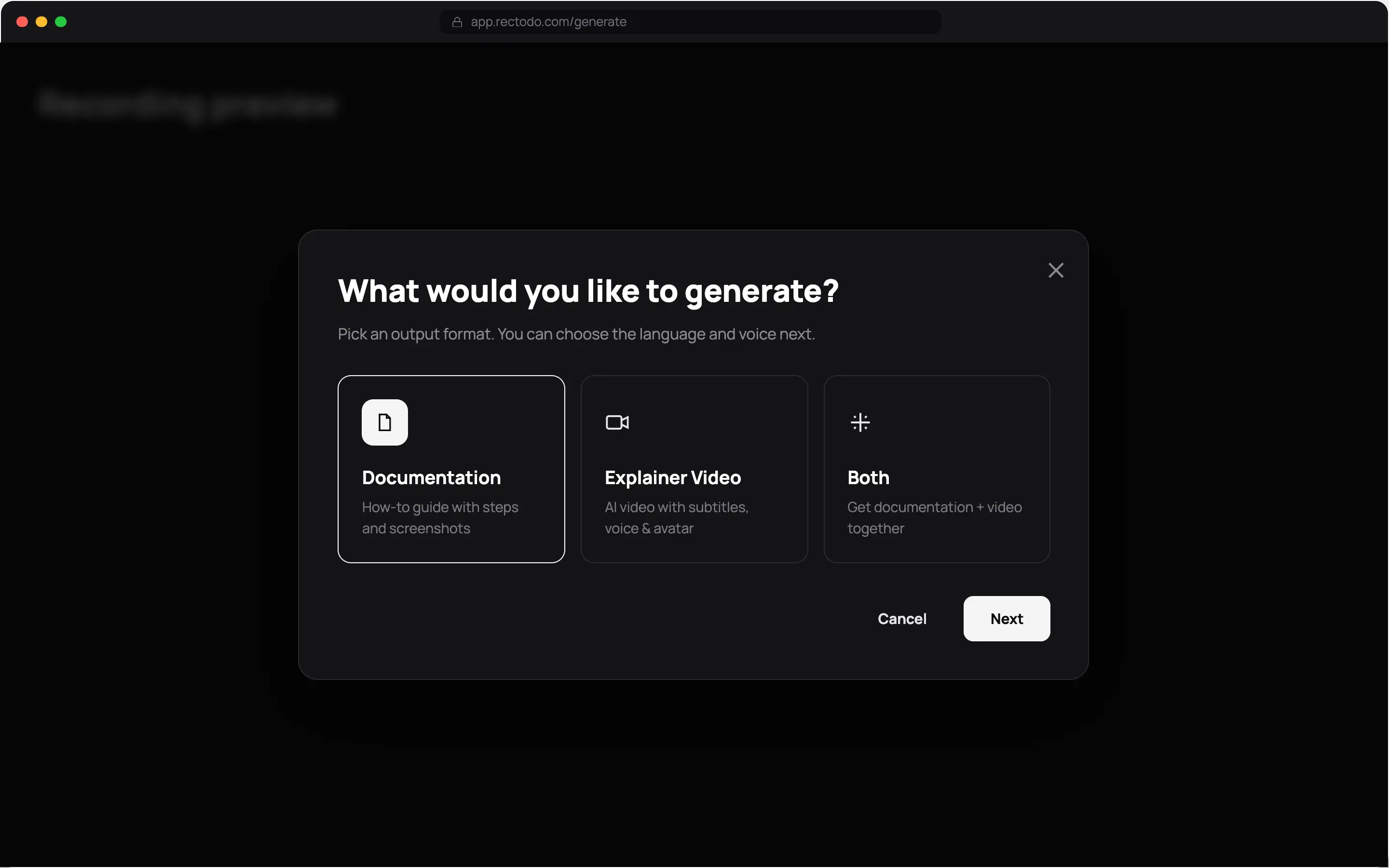
Record the workflow in Rectodo, choose Explainer Video, and pick a language and narrator. Rectodo writes the script, narrates it, adds captions, and applies your branding.
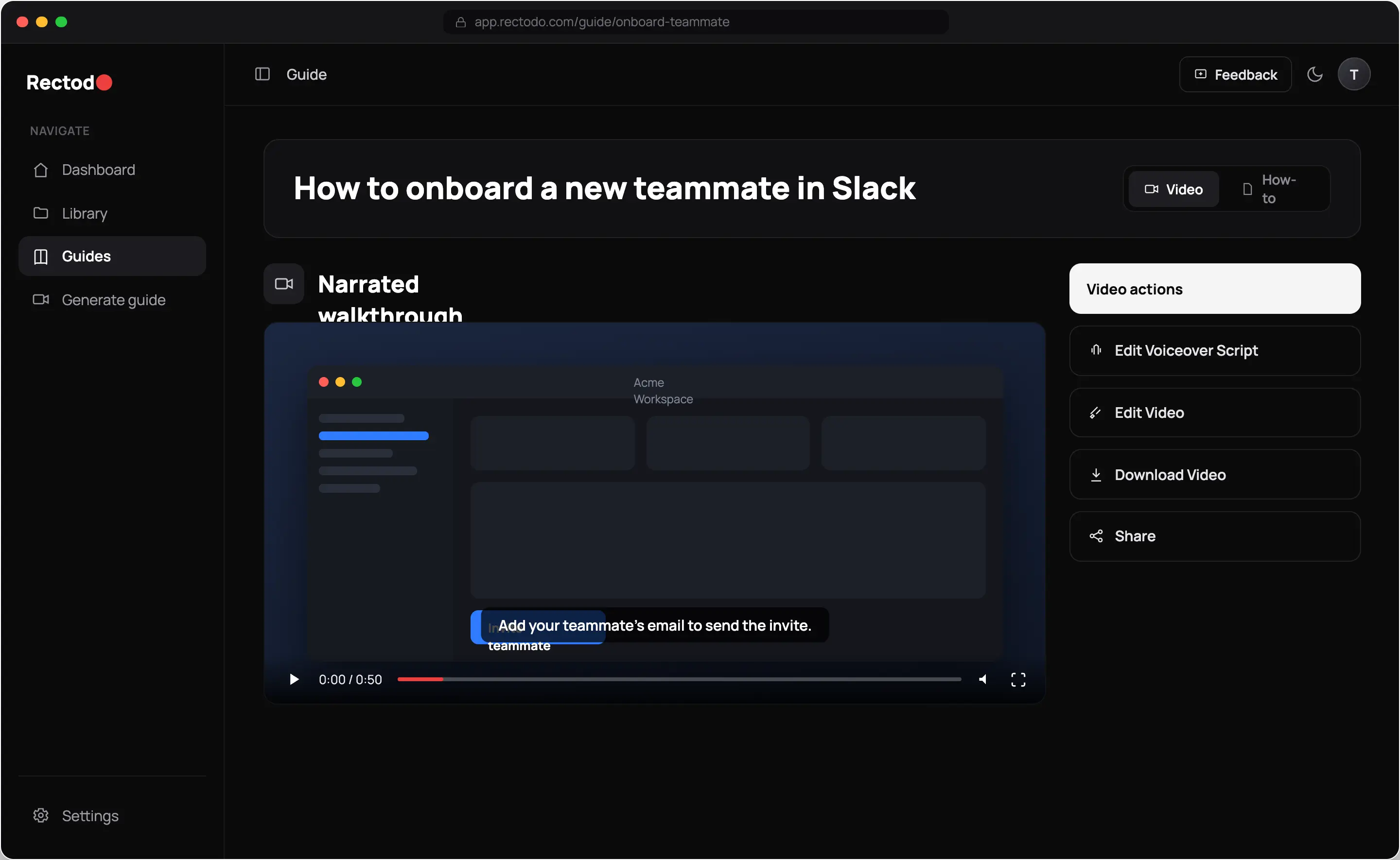
Record your screen once. Rectodo narrates a video walkthrough and writes the documentation to match, with every screenshot already in place.
Free plan. No credit card. No extension.
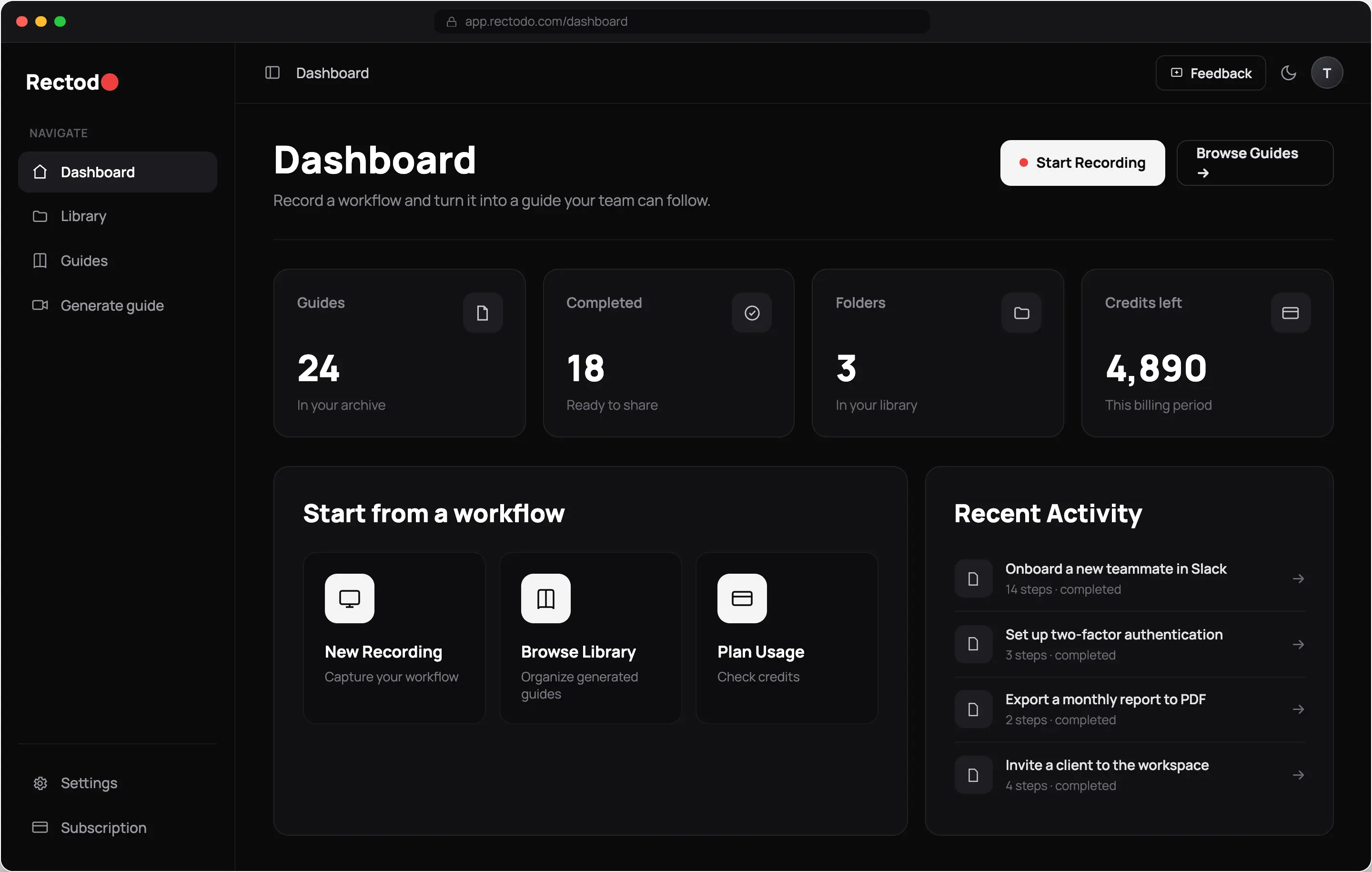
Rectodo is an AI screen recorder that produces two things from one take: a narrated video guide and written documentation with screenshots.
How it works
Press record in the browser, choose what Rectodo should build, and send the result wherever your team already looks.
Press record. Rectodo captures your screen, plus your mic and camera if you want them. Nothing to install.
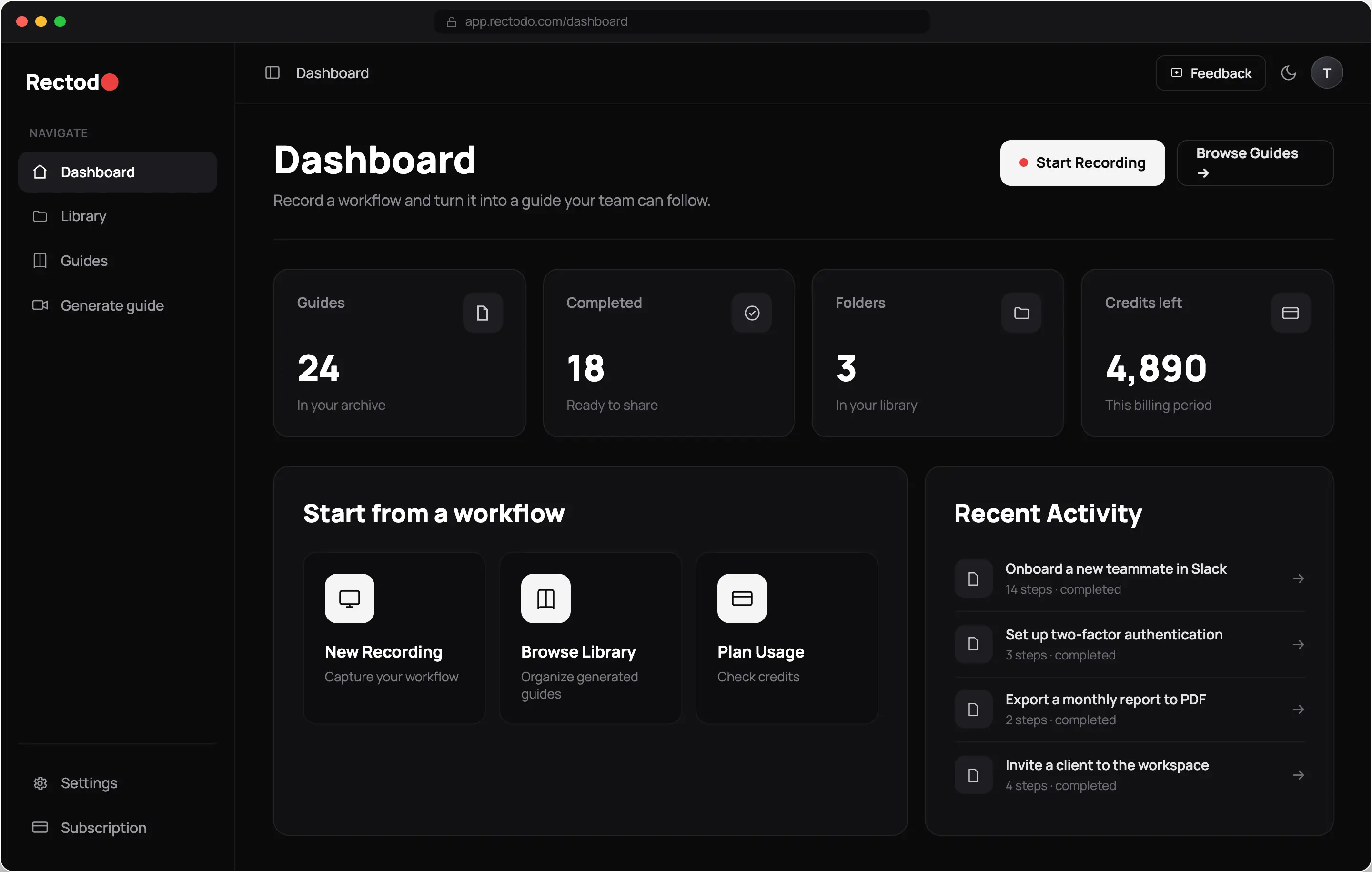
Video walkthrough, written documentation, or both. Set the language and pick a narrator.
Share a link, push it to Notion, or download the file.
Video guides
Rectodo turns your raw take into a finished walkthrough. It writes a script from what you did, reads the script in the voice you pick, burns in captions, and zooms on the part that matters. You never open a video editor unless you want to.
Written documentation
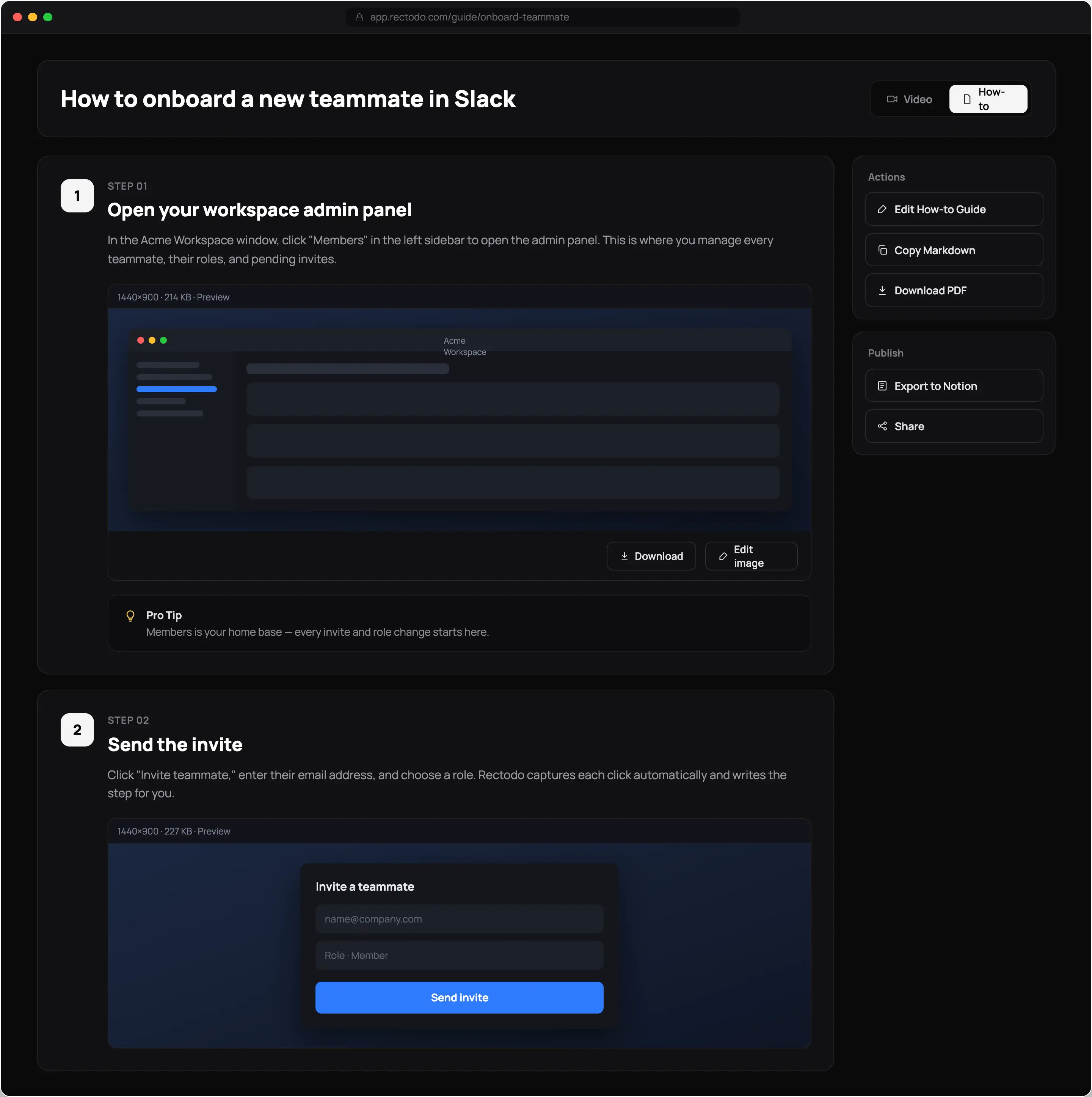
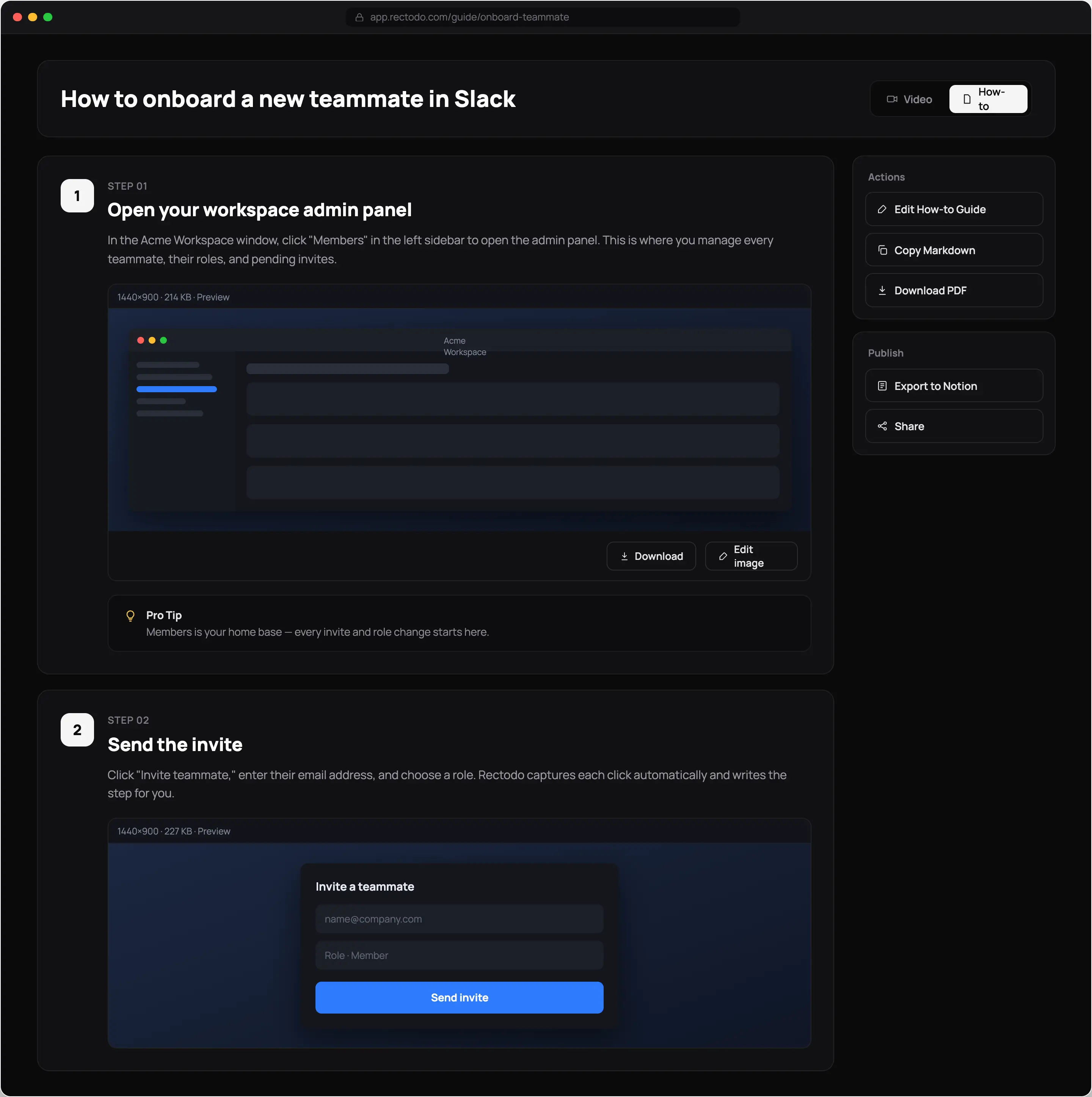
Some people would rather read. Rectodo numbers each action, drops the matching screenshot underneath, and flags the spots where people get stuck. Readers search it, copy from it, and skip ahead.
Both live on the same page. Your reader picks Video or How-to.
Trim, split, zoom, and annotate on a timeline — the editing work you would normally hand to someone else.
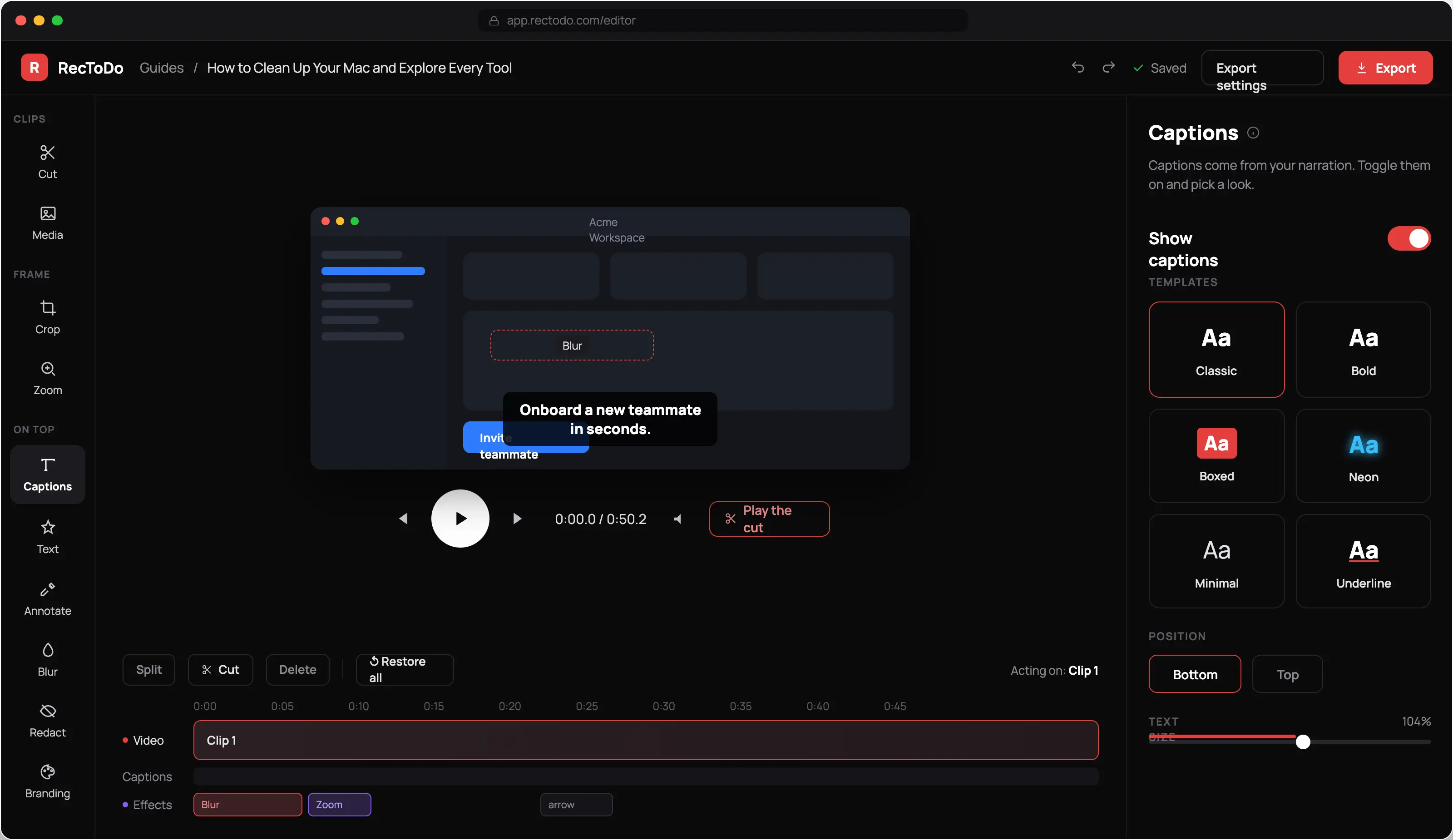
Trim, split, zoom, and annotate on a timeline.
Cover a customer name or an account number before you send anything.
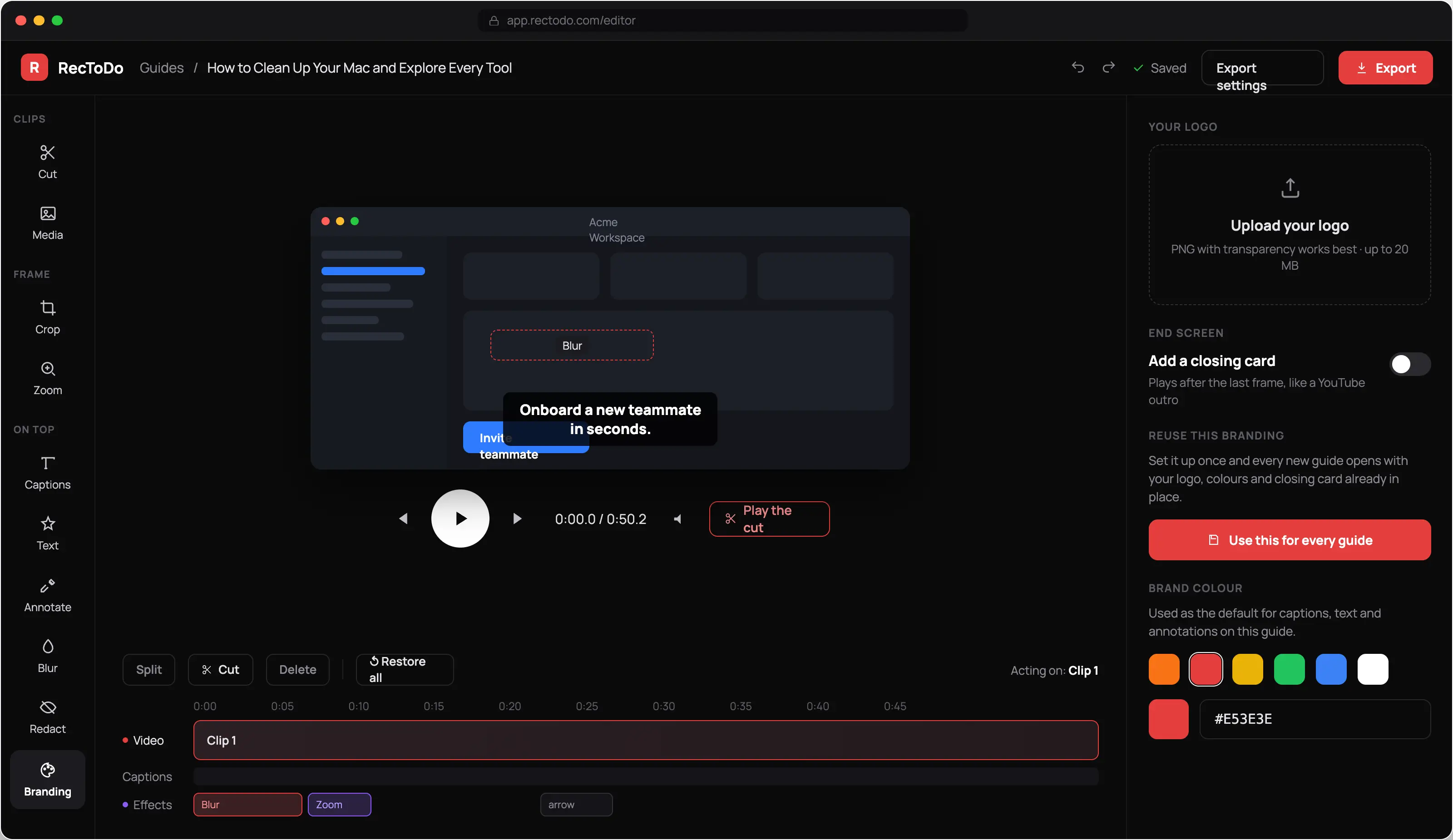
Load your logo and colour once. They carry into everything you make after that.
The same recording covers the people who watch and the people who read, so nobody waits on a doc that was never going to get written.
New users watch the setup or read it. You only recorded once.
The reply you just typed becomes a link you reuse.
Record, brand, send. Same afternoon.
Get the process out of one person's head.
Ship the walkthrough alongside the feature.
Hand over something they can follow without calling you.
Free trial
There is no pricing yet, because we would rather get the product right first. Every beta account gets the whole thing unlocked for seven days, and we set it up for you by hand.
We read every request and reply from [email protected], usually within one business day. Pricing will be announced well before anyone is asked to pay.
Free for 7 days
Everything unlocked. No card, no plan to choose, nothing to cancel.
Everything is included
No credit card. No plan to choose.
Record the workflow in Rectodo, choose Explainer Video, and pick a language and narrator. Rectodo writes the script, narrates it, adds captions, and applies your branding.
No. Rectodo runs in the browser, so there is no extension and no desktop app to get approved.
Yes. Rewrite any line, reorder steps, trim clips, swap the narrator, and blur anything sensitive.
MP4 video, PDF, Markdown, a Notion page, or a share link.
English, Spanish, French, German, Portuguese, Italian, Japanese, Hindi, and Arabic.
A screen recorder hands you a video file and stops there. Rectodo scripts it, narrates it, captions it, and writes the matching documentation from the same take.
Rectodo is in beta and pricing has not been set yet. Access is free during the beta, and pricing will be announced well before anyone is asked to pay.
Request a trial and we set your account up by hand, usually within one business day. You get seven days with every feature unlocked and no card is required.
Nothing you made disappears. Your guides and documentation stay in your library, and we will tell you what the options are before the beta ends.
One take gives you a video walkthrough and the documentation to go with it.